
LuckyOnes app: mobile access, installation and login
The LuckyOnes app is a browser-based mobile experience: games launch from the casino home page on a phone or tablet, and a browser install option can add the web experience to a home screen. This guide explains that route on iOS, Android and desktop, what installation changes, how to sign in, and how to separate a browser problem from an account-access problem. It focuses on mobile setup; games, bonuses and banking are broader topics.
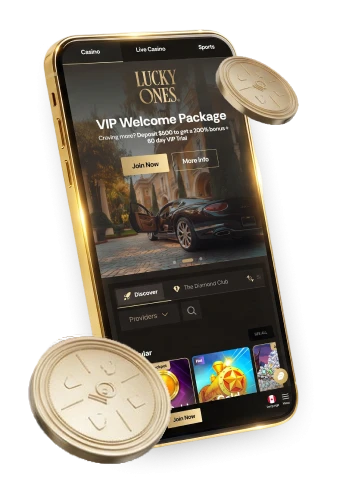
Mobile access options
Lucky Ones casino games are mobile-friendly and can be launched from the casino home page. You can start in a phone or tablet browser without first installing a shortcut. Browser installation is an optional way to open that web experience from a home-screen icon; it is not a prerequisite for visiting the mobile page.
On a phone, games launch from the home page of the lucky ones casino, so you can try browser access before deciding whether a home-screen shortcut would be useful. Opening the page directly also gives you a way to check access if a shortcut later stops working as expected.
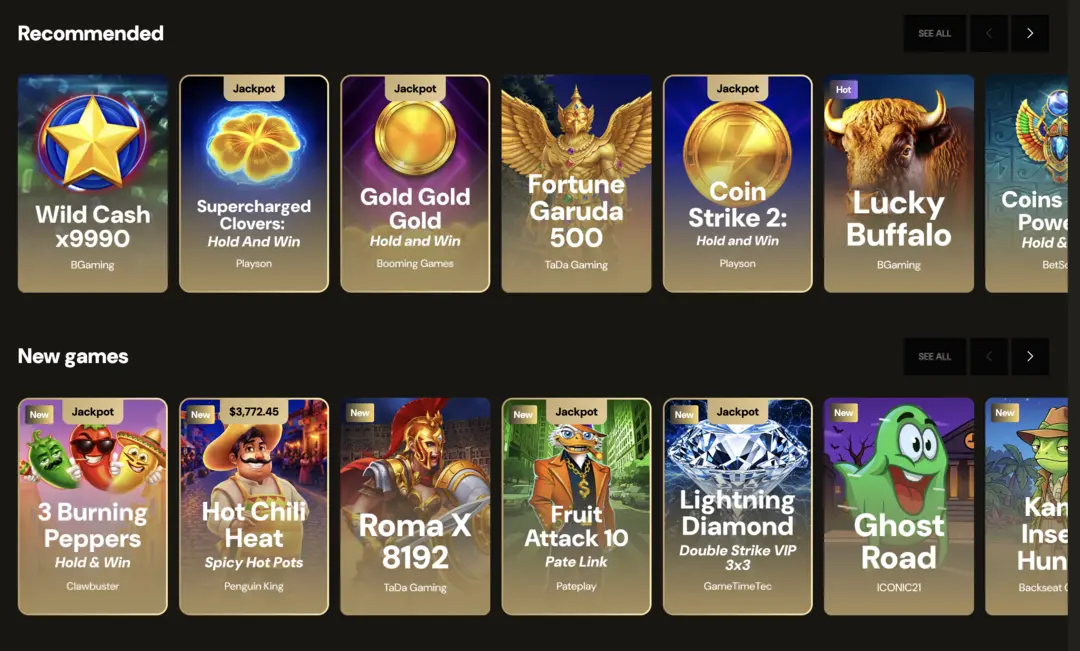
The mobile browser interface is compatible with most browsers and supports games, bonus access and withdrawal requests. This does not guarantee every game, offer or account action on every device or network.
Mobile pages can render and load differently across devices, browsers and connections. If a particular page does not display as expected, the browser page itself is a useful starting point for troubleshooting; an installed icon does not remove the need to distinguish a loading issue from an account issue.
Browser installation and home-screen access
The LuckyOnes casino app described here is a browser-installed web experience. The documented installation route uses browser controls on iOS and Android, while desktop installation starts from the navigation menu’s Download option. These steps add a convenient way to open the web experience from the device without changing the underlying account or sign-in flow.
On iOS, installation starts in the browser’s Share menu. On Android, the browser menu offers Install or Add to Home Screen. On desktop, choose Download from the navigation menu and then Install. The control you use depends on the device, but in each case the documented route is browser installation rather than a separate account-registration step.
A home-screen shortcut can save you from entering the address in a browser tab each time. It remains useful to know how to open the mobile page directly: if the icon does not open as expected, trying the page in the browser helps separate a shortcut problem from a wider page-loading problem.
Installing the web experience changes how the mobile page is launched, while account access, the game catalogue and promotion conditions remain governed by their own rules. Treat the install control as a way to launch the mobile experience, and use the account’s Log In option when you need to sign in.
Installing LuckyOnes by device
A LuckyOnes casino app download, in this guide, means using the documented browser-install route for the web experience. Start with the casino page open on the device you want to use, then follow the control shown for that device. The table distinguishes the browser menu on a phone from the navigation-menu route documented for desktop.
| Device | Browser installation action |
|---|---|
| iOS | Open the browser’s Share menu and choose the add-to-home-screen/install option. |
| Android | Open the browser menu and select Install or Add to Home Screen. |
| Desktop | Open Download in the navigation menu, then choose Install. |
On iOS, look in Share rather than the Android-style browser menu. On Android, either Install or Add to Home Screen can be the relevant browser option. Those labels identify the same documented type of browser setup; the exact control available to you depends on the device and browser in use.
The desktop sequence has a different starting point: Download in the navigation menu comes before Install. If you are using a phone, follow the phone’s browser controls instead of looking for that desktop navigation sequence. After installation, you can still open the mobile page directly in the browser when you want to test whether an access problem is limited to the shortcut.
Log in and recover account access on mobile
Mobile access to lucky one casino still starts with the account’s Log In option, whether you opened the page in a mobile browser or from an installed shortcut. Enter your account credentials there. Installing the browser experience is a launch step, not a replacement for the account sign-in control.
If you need to reset your password, follow the account-recovery route:
- Open Log In and choose Forgot Password?.
- Use the reset link sent to the email address registered to the account.
- If you cannot access that email account, contact customer care by live chat or email.
The reset link goes to the registered email, so a browser shortcut cannot resolve a problem accessing that inbox. If the mobile page opens but password recovery cannot be completed because the email account is inaccessible, the supported next step is customer care rather than repeating the installation process.
When the browser opens but signing in remains the problem, lucky one casino login guidance focuses on account access rather than home-screen installation. Keep that distinction in mind when choosing between a browser check and the password-recovery steps above.
Troubleshoot mobile browser and home-screen access
To troubleshoot mobile access, first identify what is failing: the installed shortcut, the page in the browser, or account sign-in after the page opens. That distinction keeps a loading check separate from password recovery. Try the relevant browser check before treating a page that will not open as a credential problem.
- Shortcut does not open as expected: Open the mobile page directly in the browser. If the page opens there, you have a more specific shortcut issue to investigate.
- Page does not load as expected: Refresh it or restart the browser. You can also try another browser on the same device to compare what happens; these checks do not guarantee that the page will load.
- Page opens but sign-in fails: Use Log In and Forgot Password? if a reset is needed. If the registered email account is inaccessible, contact customer care by live chat or email.
A direct browser check is especially helpful after installing the web experience because it tests access without relying on the home-screen icon. If neither route opens the page, focus on the browser-loading checks. If both routes open the page but you cannot sign in, the account-recovery route is the relevant next step.
Avoid treating reinstalling a shortcut as a password fix. The documented install steps describe how to add browser access on a device; password recovery uses an emailed link and, when that email cannot be accessed, customer care. Keeping those routes separate makes it easier to explain the problem if you need help.
Lucky Ones mobile access FAQs
Is the Lucky Ones app installed through a browser?
Yes. The documented route installs a browser-based web experience using the device’s browser or, on desktop, Download followed by Install in the navigation menu. The setup adds the web experience to the device while the browser-based account and sign-in flow remain unchanged.
How do I install Lucky Ones on iPhone or Android?
On iPhone, open the browser’s Share menu and choose the add-to-home-screen/install option. On Android, open the browser menu and select Install or Add to Home Screen.
What if I cannot access the email used for password recovery?
Contact customer care by live chat or email. The standard reset route sends a link to the registered email, so use customer care if you cannot access that inbox.